
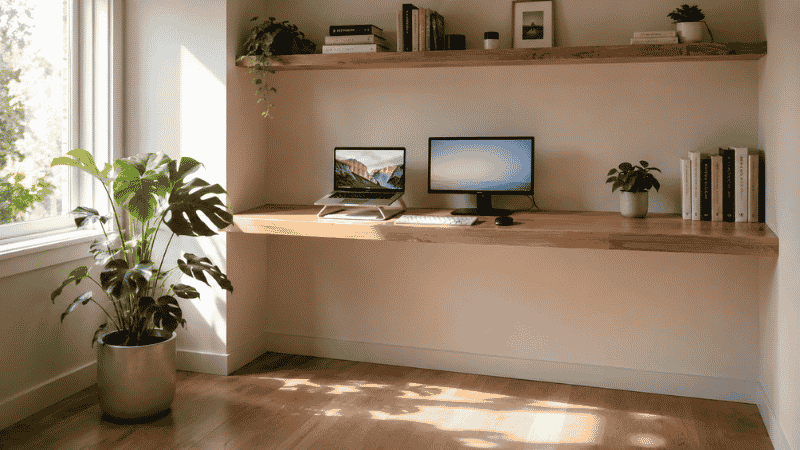
The apartment is 650 square feet. You work from home five days a week. The living room doubles as everything else.
Sound familiar? Because a significant portion of the home office setups people are actually building right now exist in spaces that were never designed to have an office in them — bedrooms, living room corners, hallways, alcoves. And in these spaces, a standard four-legged desk with its full floor footprint is often too much.
A floating desk — a wall-mounted surface with no legs, no floor contact — solves the footprint problem. So does a fold-down desk that collapses flat against the wall when you’re done. So does a murphy desk that hides completely behind closed doors. They all reclaim space. But they’re not interchangeable, and the one that works for your specific situation depends on details that most product listings skip over entirely.
This guide breaks down what each type actually is, what it’s genuinely good for, what makes each one fail in real use, and how to pick between them without buying something you’ll regret.
— Daniel Shaw, 7 years working from home across setups ranging from a proper office to a 400-square-foot studio
Key Takeaways
- A floating desk (fixed wall-mounted surface) is the most stable and spacious space-saving option — but it’s permanent and can’t be hidden when not in use
- A fold-down desk collapses flat against the wall when not in use — ideal for spaces that need to serve double duty as non-office rooms
- A murphy desk hides completely behind cabinet doors — the most discreet option, also the most expensive and space-consuming in its closed form
- Wall mounting requires hitting a stud or using appropriate anchors — this is the most important practical consideration before buying any wall-mounted desk
- Minimum usable desk depth for comfortable laptop work is 16 inches; for a monitor with keyboard, 20 to 24 inches is the practical minimum
What Is a Floating Desk? (Fixed vs. Folding — The Distinction That Matters)
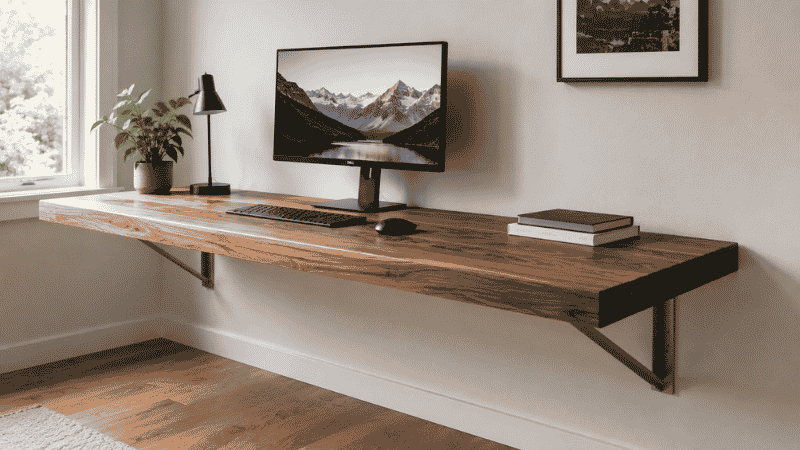
The term “floating desk” gets used loosely to describe almost any desk that mounts to a wall without legs. But there’s a meaningful distinction between the two main types that affects which one you should actually buy.
Fixed floating desk: A surface that mounts permanently to the wall and stays in position. You sit at it, you leave it, it stays there. No moving parts. Maximum stability, maximum usable surface area. The desk is always present in the room — visible whether you’re working or not.
Fold-down floating desk: A surface that folds up against the wall when not in use. When deployed it’s a working desk; when folded it’s a flat panel on the wall that takes up almost no visual space. The trade-off is that the surface area is smaller (the fold mechanism limits depth) and it requires the physical act of setting up and putting away each session.
Most online searches for “floating desk” or “wall mounted desk” return both types mixed together, which creates the confusion. The real question to ask first: do you need the desk to disappear when you’re not working, or is it okay for it to remain visible as a permanent fixture?
If the desk can be a permanent fixture — even in a bedroom or shared space — a fixed floating desk gives you a more stable, spacious, and lower-friction setup. If the room needs to function as something else entirely during non-work hours, a fold-down is the answer.
Wall Mounted Desk: The Fixed Option and When It’s Right
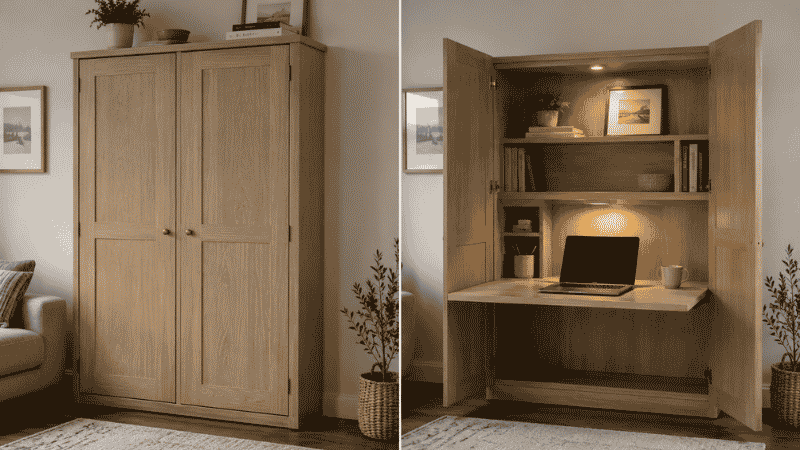
A fixed wall mounted desk is essentially a shelf sized for working — deep enough for a monitor or laptop, wide enough for keyboard and mouse, mounted at the right height for seated work.
The advantages over a standard desk are real: no floor footprint at all, no legs to clean around, no furniture blocking circulation through the room. The floor under the desk is fully open, which makes a small room feel significantly larger even when the desk surface itself takes up the same wall width as a standard desk.
The practical requirements:
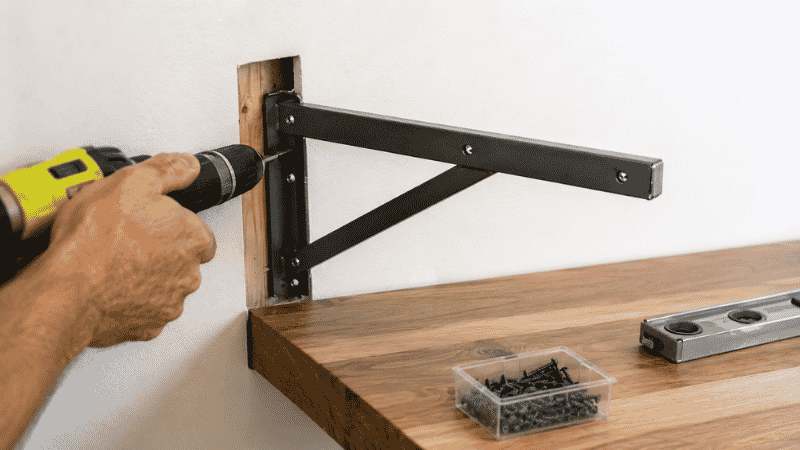
- Wall studs or appropriate anchors. A wall mounted desk carries meaningful weight — your monitor, laptop, books, and your own arm pressure while typing. It needs to be secured to wall studs wherever possible. If studs aren’t in the right position, heavy-duty drywall anchors rated for the expected load can work, but this requires attention to the anchor weight rating.
- Correct mounting height. The desk surface should sit at the same height as a standard desk — roughly 28 to 30 inches from the floor for most adults in a standard chair. Mounting too high or too low is the most common installation mistake, and it’s permanent.
- Minimum depth of 20 inches. A shelf less than 20 inches deep is uncomfortable for anything beyond a laptop on a stand. For a full monitor-and-keyboard setup, 24 inches is the minimum comfortable depth.
What a fixed floating desk doesn’t do: disappear. If the room needs to be a bedroom or living room during non-work hours, the desk is still there, visually present. For some people this is fine — a desk in a bedroom corner is just a desk. For others, the psychological separation of “visible desk = work mode” makes it harder to mentally disconnect at the end of the day.
→ Desk placement and visual separation in shared spaces — home office layout guide.
Fold Down Desk: When the Room Needs to Do Double Duty
A fold down desk — also called a drop-leaf wall desk or Murphy desk in its basic form — hinges to the wall and folds flat when not in use. When deployed, it provides a working surface. When folded, it’s a flat panel on the wall, typically 4 to 6 inches deep, that can be painted to match the wall or finished to look like a cabinet.
This type of desk is the right answer when:
- The room genuinely needs to serve a completely different function during non-work hours — a guest bedroom, a living room, a dining area
- You share the space with others who don’t want to see “office” during non-work time
- The psychological separation of putting the desk away helps you actually stop working at the end of the day
The honest trade-offs:
Surface depth is limited. The fold mechanism constrains how deep the surface can be. Most fold-down desks offer 16 to 20 inches of depth when open — enough for a laptop, not enough for a full monitor-at-arm’s-length setup. If you need to run a monitor and keyboard with proper viewing distance, a fold-down may not give you sufficient depth.
Setup friction accumulates. Folding the desk down, setting up your equipment, working, packing up, folding it back up — this is a minute or two each direction. For some people this is a non-issue; for others it becomes the reason they stop using the desk and set up on the couch instead. Be honest about your tolerance for this ritual before buying.
Weight limits are real. Fold-down desks have lower weight capacity than fixed desks because the hinge mechanism carries the load. Check weight ratings before placing monitors or heavy equipment on one.
Murphy Desk: Full Concealment for a Dedicated Home Office Space
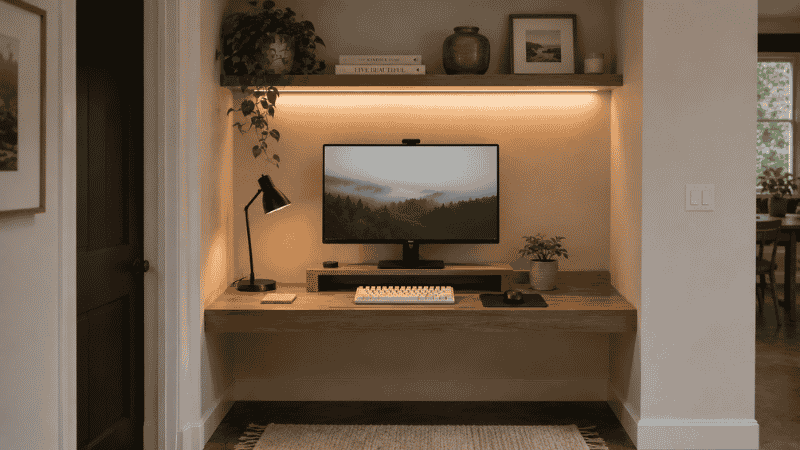
A murphy desk — named after the same wall-bed concept — is a desk that folds completely behind cabinet doors or into a cabinet unit when not in use. When closed, it looks like a piece of furniture or a cabinet. When open, it reveals a full workspace with surface, sometimes storage shelves, sometimes a monitor mount.
This is the most complete concealment option and the most expensive. Murphy desks range from several hundred to several thousand dollars depending on size, built-in features, and whether they’re custom-built or pre-made units.
Where they make the most sense: dedicated home office rooms that occasionally need to be guest rooms, or situations where the desk equipment (monitor, keyboard, all peripherals) needs to be fully out of sight when the room is used for something else. The murphy desk can be closed and the room becomes a bedroom, a reading room, or a yoga space without any visible indication that a home office is in there.
The practical consideration most buyers miss: a murphy desk unit, even when closed, has a meaningful footprint. The cabinet that houses it is typically 18 to 24 inches deep and as wide as the desk surface. In a small room, this can feel less space-efficient than a simple fold-down desk because the closed cabinet takes up floor space even when the desk isn’t in use.
Foldable Wall Desk: The Overlap Category
Some products marketed as “foldable wall desks” are a hybrid — they mount to the wall like a fixed floating desk, but include a fold-down leaf that extends the surface area when needed. The primary surface is fixed; the extension folds. This works well when you need a small permanent work surface for light tasks (a laptop, a notebook) but occasionally need more space for larger projects.
These are typically more stable than pure fold-down desks because the primary surface is fixed, and more flexible than pure fixed desks because the extension can be folded away when not needed.
For small home offices that need a permanent desk with occasionally larger surface area, this hybrid category deserves consideration alongside pure fixed and pure fold-down options.
Wall Desk Ideas: Configurations That Actually Work
Before buying any wall-mounted desk, these configurations address the most common small-space home office scenarios:
The Alcove Setup
A fixed floating desk surface installed across the full width of a closet alcove or niche. The alcove walls provide natural visual boundaries (no legs needed for side support), the desk surface is recessed into the wall, and the space can have curtains or doors added to close it off completely when not in use. If your home has any unused alcoves or deep doorways, this is one of the most space-efficient home office configurations possible.
The Small Wall Mounted Desk for a Bedroom
A fixed floating desk surface 40 to 48 inches wide, mounted at one end of a bedroom wall with the desk facing the wall rather than the room. The facing-wall orientation creates the psychological work zone separation that matters in a shared-purpose space. When you’re working, you face the desk and wall. When you’re not, the desk surface is narrow enough to not dominate the room.
Wall Desk with Storage
A floating desk surface with shelves mounted directly above — either a hutch-style unit or floating shelves positioned at the right clearance height. This creates a fully functional work zone on a single wall section without any floor furniture. The desk provides the working surface; the shelves above provide the storage that would otherwise require a filing cabinet or bookshelf taking up floor space.
→ Organizing the surface of a wall-mounted desk — desk organization ideas that work in compact setups.
Installation: What You Need to Know Before Buying
The installation step is where most wall desk projects either succeed cleanly or create problems. Getting this right before purchasing makes the difference between a desk that feels solid and one that wobbles or fails to mount properly.
Find your studs first. Use a stud finder to locate the wall studs in your chosen location. Studs are typically spaced 16 inches apart. For a desk that spans 40+ inches, you’ll almost certainly find studs in the right places — but confirm before buying a specific bracket configuration.
Know your wall type. Standard drywall allows stud mounting and anchor mounting. Concrete or brick walls require masonry anchors and a hammer drill — more work but very secure. Plaster walls (common in older homes) can be more unpredictable and may require specialist anchors.
Check weight ratings against your actual load. Add up: the desk surface weight, your monitor, laptop, books, and the downward pressure you apply while typing. For most setups this is 40 to 80 lbs. Your mounting hardware needs to exceed this with significant margin.
The mounting height calculation: standard seated desk height is 28 to 30 inches from floor to surface. Measure your chair height and your comfortable elbow-to-floor distance seated — these are more accurate than the standard number for your specific body.
Cable management matters before installation. Plan where your cables will run before mounting. A wall-mounted desk with cables hanging down the wall to the floor is both visually messy and functionally annoying. Consider cable channels, a wall-mounted cable raceway, or running cables inside the wall before the desk goes up. → Desk cable management — how to handle cords in a wall-mounted setup.
If You Only Have 10 Minutes to Decide Right Now
Answer these three questions:
- Does the desk need to disappear when you’re not working? Yes → fold-down or murphy desk. No → fixed floating desk.
- Will you use a monitor (not just a laptop)? Yes → you need at least 20 inches of desk depth, which rules out most pure fold-down desks. No → a fold-down with 16-inch depth works fine.
- Can you mount into the wall? If renting and uncertain: check your lease or ask your landlord. Some fold-down desks use smaller mounting hardware that landlords are more flexible about. Full fixed desks require standard mounting that leaves larger holes on removal.
If all three answers point to a fixed floating desk: measure the wall space you have, confirm stud positions, and choose a depth of at least 20 inches. If a fold-down: confirm the depth is sufficient for your equipment before ordering.
Frequently Asked Questions
What is a floating desk?
A floating desk is a wall-mounted work surface with no legs — it appears to float off the wall because it’s supported by wall brackets or a concealed mounting system rather than standing on the floor. Floating desks free up floor space and can make a small room feel more open. The term covers both fixed (permanent) surfaces and fold-down surfaces that collapse flat against the wall when not in use.
What is a wall mounted folding desk?
A wall mounted folding desk (also called a fold-down desk or drop-leaf wall desk) is a desk that hinges to the wall and folds flat against it when not in use. When folded up for use, it provides a working surface. When folded down against the wall, it reduces to a flat panel a few inches deep, freeing up the floor space in front of it entirely. These are ideal for rooms that need to serve multiple purposes — a bedroom that doubles as a home office, or a living space with a small dedicated work zone.
How much weight can a floating desk hold?
This varies significantly by mounting method and hardware. A floating desk properly mounted into two wall studs with appropriate hardware typically holds 100 to 200+ lbs. Fold-down desks with hinge mechanisms are generally rated for lower loads — 50 to 100 lbs is common. Always check the specific product’s weight rating and verify that your mounting installation matches the requirements, since improper mounting dramatically reduces effective weight capacity.
Can a floating desk work as a standing desk?
Yes — a wall-mounted floating desk can be installed at standing height (typically 38 to 42 inches from floor to surface, depending on your height) rather than seated height. Some products are marketed specifically as wall mounted standing desks. The limitation is that a fixed-height floating desk works for either sitting or standing, not both — if you want to alternate, you’d need a monitor arm that adjusts height, or to accept that the desk is for standing use only.
Is a murphy desk worth it?
For the right situation, yes — specifically when you need a desk that completely disappears into what looks like a cabinet or piece of furniture, and you’re willing to pay the significant price premium for that capability. For most small-space home office setups, a fold-down desk or fixed floating desk provides 80% of the benefit at a fraction of the cost. The murphy desk earns its price when full concealment is non-negotiable — a guest room that must not look like a home office, or a space where seeing a desk at all during non-work time creates a genuine problem.
The Right Desk for the Space You Actually Have
Wall-mounted desks solve a real problem — floor space — but they require more upfront thinking than a standard desk. The floor footprint disappears, but the wall commitment is real, the installation matters, and the type you choose determines how the space functions during both working and non-working hours.
If the desk can stay visible: a fixed floating desk gives you stability and usable surface area. If the room needs to transform: a fold-down desk gives you the work surface during sessions and your room back when you’re done. If everything needs to hide: a murphy desk does that, at a cost.
Start with what the room needs when you’re not working. The desk choice follows from there.
More from WorkDeskLab:
- How to Set Up a Home Office That Actually Works
- Home Office Layout — How to Arrange Your Workspace for Focus
- Desk Organization Ideas That Actually Stick
- Desk Cable Management — Hide Every Wire Without Drilling
References: American Society of Interior Designers — Space planning standards for home office environments (asid.org) · Cornell University Human Factors and Ergonomics Research — Workstation height guidelines for seated and standing configurations (ergo.human.cornell.edu)