
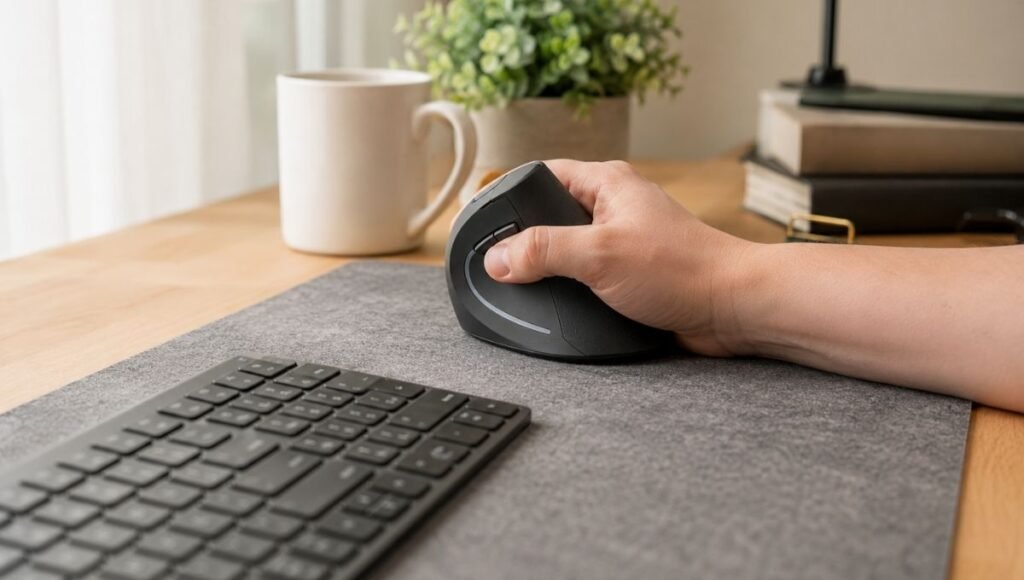
The wrist discomfort that builds from mouse use is one of the slowest-developing problems in a home office — and one of the hardest to connect to its source.
It doesn’t happen the first day, or the first month. It accumulates. A slight tightness after a long session. An ache on the thumb side of your wrist that’s there when you wake up some mornings. A habit of resting your forearm on the desk edge and flexing your wrist sideways without thinking about it. You’ve been working this way for years, and the mouse has been in roughly the same position the whole time.
The standard mouse is designed for a palm-down position — your forearm rotated fully inward, held there for hours while you make hundreds of small movements. Over time, this sustained position loads the muscles and tendons in the wrist and forearm in ways that accumulate into discomfort. An ergonomic mouse changes this position — but different types change it in different ways, and the one that helps depends on where the discomfort is actually coming from.
This guide covers what a vertical mouse actually does to your wrist position, what the research says and doesn’t say, how a trackball solves a different problem, and how to choose between them honestly.
— Daniel Shaw, 7 years working from home, one vertical mouse that changed how my forearm felt by the end of the day
Key Takeaways
- A standard mouse holds the forearm in full pronation (palm facing down) for hours — this sustained rotation loads the wrist muscles and tendons and is the primary driver of mouse-related forearm and wrist discomfort
- A vertical mouse rotates the hand to a handshake position (60–90 degrees), significantly reducing forearm pronation — research published in the Work journal found vertical mice showed better ergonomic indicators than flat mice in multiple measures
- A 2014 study in PubMed found that vertical mice reduced ulnar deviation (sideways wrist bending) but did not directly reduce carpal tunnel pressure in patients already diagnosed with carpal tunnel syndrome — an honest finding that most ergonomic mouse marketing skips
- Trackball mice solve a different problem than vertical mice — they eliminate the arm movement required to move the cursor, which reduces shoulder and forearm strain from reaching rather than wrist rotation strain
- An adjustment period of 1–2 weeks is normal when switching mouse types — initial awkwardness doesn’t mean the mouse is wrong for you
Ergonomic Mouse Benefits: What’s Actually Happening in Your Wrist
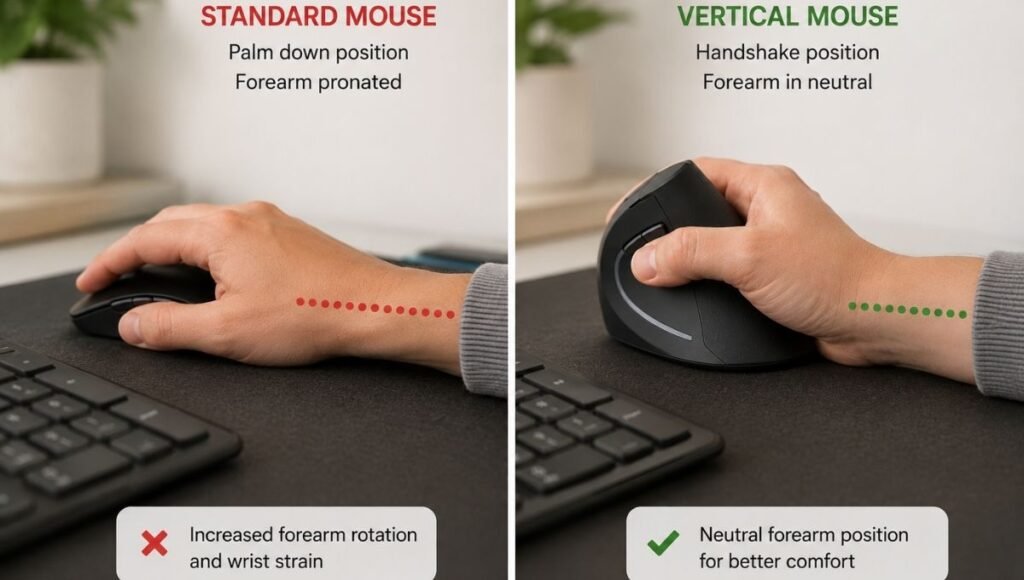
To understand what an ergonomic mouse does, it helps to understand what a standard mouse is doing that creates the problem.
When you use a flat mouse, your forearm is fully pronated — rotated so your palm faces the desk. This is an anatomically unnatural resting position. If you let your arm hang relaxed at your side, your thumb naturally points forward and your palm faces inward, not downward. The palm-down position requires your forearm muscles to hold that rotation actively throughout the day.
Add the sideways wrist movement required to click and move a flat mouse, and you have sustained muscle load combined with repetitive lateral wrist deviation — the combination that contributes to the forearm tightness, wrist aching, and thumb-side discomfort that mouse-heavy computer work produces over time.
An ergonomic mouse addresses this by changing the hand position. The specific change — and therefore the specific benefit — depends on which type of ergonomic mouse you choose.
Vertical Mouse: The Handshake Position and What It Changes
A vertical mouse rotates the hand 60–90 degrees from the flat palm-down position to a handshake orientation — thumb pointing up, fingers wrapping the side of the mouse rather than draping over the top. This is closer to the forearm’s natural relaxed position, which means less sustained muscle work to hold the arm in the required angle.
The ergonomic benefit is real: reduced forearm pronation means the forearm muscles aren’t holding a forced rotation for hours. Most users who switch to a vertical mouse notice that the forearm feels less tight by the end of a long work session — not immediately on day one, but after a week or two of use.
What vertical mice don’t do — and this is worth being clear about — is universally reduce wrist strain for everyone with every type of wrist problem. A 2014 study published in PubMed that measured carpal tunnel pressure directly found that while vertical mice reduced ulnar deviation (the sideways wrist bending), they did not reduce carpal tunnel pressure in patients already diagnosed with the condition. The study’s conclusion was careful: there wasn’t strong evidence to recommend or advise against ergonomic devices for CTS patients based on pressure measurement alone.
This doesn’t mean vertical mice don’t help — for most people using a mouse for long hours who are experiencing general forearm and wrist fatigue, the position change does reduce discomfort. It means that if you have a diagnosed wrist condition, an ergonomic mouse is part of a setup change, not a substitute for medical treatment.
Vertical Mouse Benefits for Home Office Use
For the typical home office worker using a mouse 5–8 hours daily without a diagnosed wrist condition, a vertical mouse provides a meaningful improvement in how the forearm and wrist feel at the end of a working day. The key mechanism — reduced sustained forearm pronation — addresses the most common source of mouse-related fatigue.
The adjustment period is real. The first few days with a vertical mouse feel awkward — the grip is unfamiliar, precision takes a moment longer, and cursor control feels less natural than with a flat mouse. Most users adapt within 1–2 weeks. Giving up after three days is the most common reason people conclude a vertical mouse “didn’t work.”
Editor’s note: Of all the desk hardware changes I’ve made over 7 years working from home, switching to a vertical mouse produced the most noticeable improvement in how my arm felt at 5pm. The forearm tension that I’d attributed to general stress was specifically from the sustained pronation — removing it made an immediate, consistent difference within two weeks.
Trackball Mouse: Solving a Different Problem
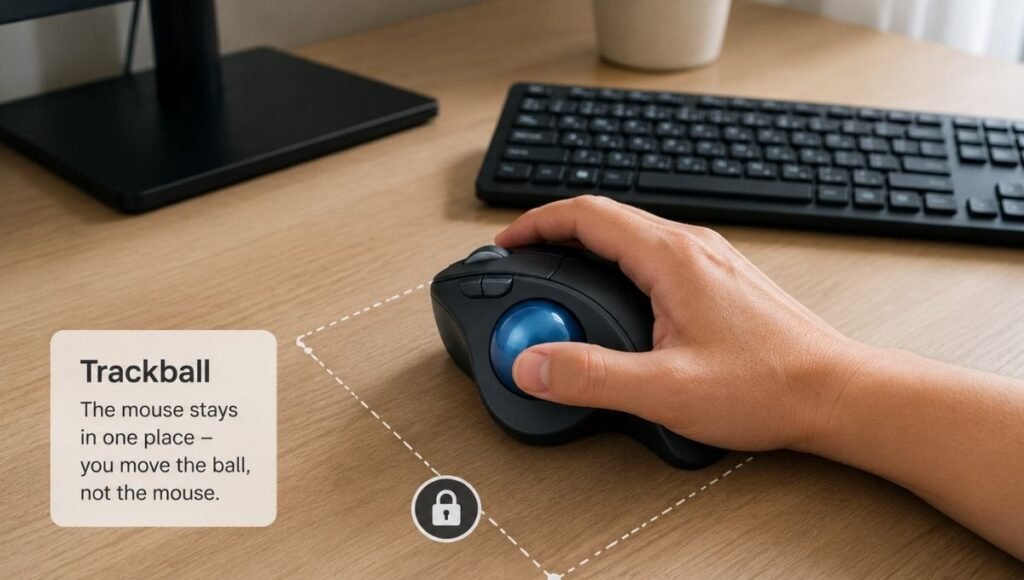
A trackball mouse is the ergonomic option that’s recommended for a different pattern of discomfort than wrist rotation: shoulder and forearm strain from the arm movements required to move the cursor across the screen.
With a standard mouse, you move the cursor by moving your entire hand and forearm — sweeping left, right, up, and down. Multiply this by the hundreds of cursor movements in a typical working day, and the cumulative load on the shoulder, upper arm, and forearm is significant. For people whose mouse-related discomfort is in the shoulder or upper forearm rather than the wrist, a trackball solves the actual problem in a way that a vertical mouse doesn’t.
A trackball keeps the mouse stationary on the desk. You roll a ball with your thumb (thumb trackball) or fingers (finger trackball) to move the cursor. The hand stays in one position; the arm barely moves. The shoulder and forearm load from arm sweeping disappears entirely.
Ergonomic Trackball Mouse: Thumb vs Finger
The two trackball designs work differently and suit different hand sizes and preferences:
Thumb trackball: A large ball positioned where the thumb rests, rolled with the thumb to move the cursor. The hand grips the mouse body in a roughly standard position. Comfortable for users with larger hands; can create thumb strain with sustained use if the thumb bears the full load of cursor movement.
Finger trackball: A ball positioned in the center or top of the mouse, rolled with one or more fingers. Less strain on the thumb but requires a different hand position that some users find less natural initially. Provides more precise control for detail work.
Trackballs have a longer adjustment period than vertical mice — typically 2–4 weeks before cursor control feels as natural as a standard mouse. The precision of a trackball for fine-detail work (photo editing, CAD, precise clicking) is actually superior to a standard mouse once the adaptation period passes, which is why trackballs are popular in professional design and engineering contexts.
Ergonomic Mouse for Carpal Tunnel: What Type to Choose
Carpal tunnel syndrome involves compression of the median nerve where it passes through the wrist — the symptoms are numbness and tingling in the thumb, index finger, middle finger, and part of the ring finger, often worse at night.
The mouse position that most increases carpal tunnel pressure is wrist extension (bending the wrist upward) combined with full forearm pronation. Reducing these positions helps reduce the pressure contributing to symptoms.
For carpal tunnel-related discomfort, the priority order:
- Reduce wrist extension first. If your wrist bends upward while mousing — a common habit — this is the highest-priority fix regardless of mouse type. The wrist should be neutral or slightly extended downward, never bent upward.
- Consider a vertical mouse. The handshake position reduces the full pronation that contributes to wrist strain. As noted above, the research on carpal tunnel pressure specifically is mixed, but the forearm pronation reduction is real and benefits most users.
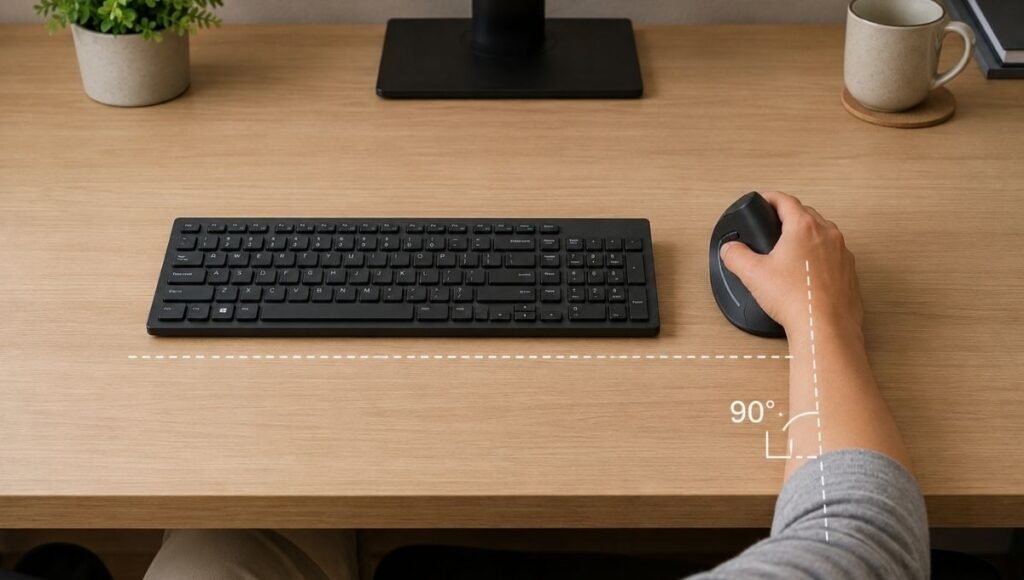
- Adjust mouse position before mouse type. Moving the mouse closer to your body so your elbow stays at roughly 90 degrees and your forearm stays level reduces wrist strain immediately, without any hardware change.
If wrist discomfort persists after two weeks of correct mouse positioning and use of an ergonomic mouse, that warrants professional evaluation. Persistent numbness, tingling that wakes you at night, or weakness in the hand are signals to see a doctor rather than continue adjusting equipment. → Wrist Rest Guide — what a wrist rest does and when it helps.
Ergonomic Mouse and Keyboard: Setting Up Both Correctly
An ergonomic mouse works best as part of a complete workstation setup — not as a standalone fix. The mouse position relative to the keyboard determines whether the ergonomic benefits of the mouse design are actually available in use.
The mouse should sit beside the keyboard at the same height — not higher, not lower. Your elbow should be at approximately 90 degrees with the forearm level when you reach for the mouse. If the mouse is positioned to the right at a higher or lower surface level, the arm position negates part of the ergonomic benefit of the mouse design.
Common problems with mouse position:
- Mouse too far to the right: Requires shoulder abduction (arm reaching away from body) that loads the shoulder and forearm regardless of mouse type
- Mouse too far back: Requires reaching forward, which loads the shoulder and wrist
- Mouse on a different surface level than keyboard: Creates wrist extension or flexion depending on direction
→ Full desk setup guide including keyboard and mouse position.
Left Handed Ergonomic Mouse: What to Know
Most ergonomic mice are designed for right-handed use — the contoured shapes and thumb rests assume the thumb is on the left side of the mouse. Left-handed users have two options:
Ambidextrous ergonomic mice: Symmetrical designs that work equally well in either hand. These don’t provide the same degree of ergonomic contouring as a right-handed specific mouse, but they’re comfortable and work well for left-handed users who can’t find a left-specific option.
Left-handed specific vertical mice: These exist but are a smaller product category. Brands like Evoluent produce left-handed vertical mice with the same handshake orientation as right-handed models. They’re worth seeking out if left-handed use is your primary mouse hand.
If You Only Have 10 Minutes to Test Whether an Ergonomic Mouse Will Help
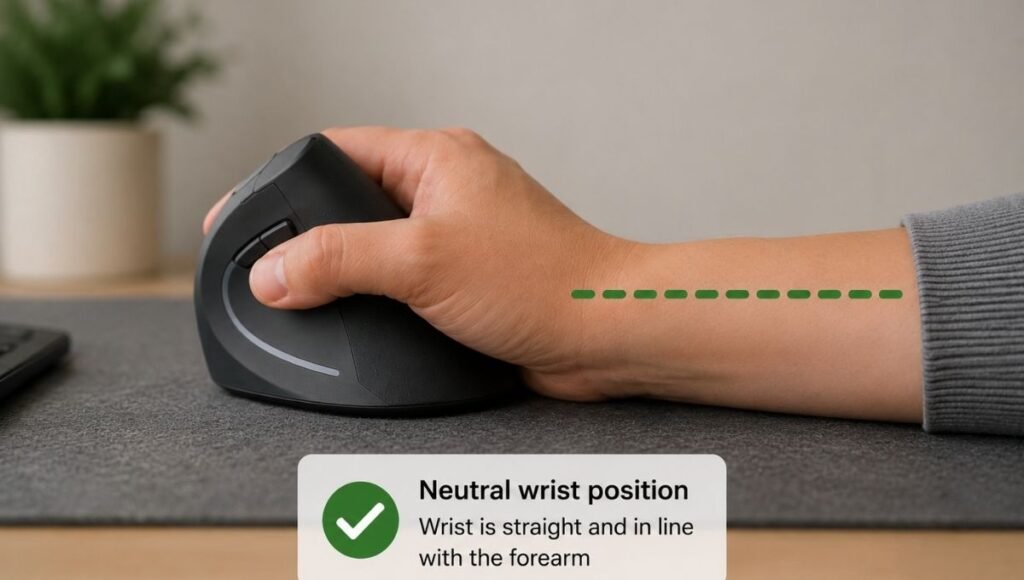
Before buying anything: sit at your desk and observe your current mouse hand position. Is your forearm fully palm-down? Is your wrist bending sideways when you click? Is the mouse positioned so far to the right that your shoulder has to abduct to reach it?
The fastest free intervention: move the mouse 3–4 inches closer to your body, directly beside the keyboard rather than far to the right. Use it in this position for an hour. Notice whether the shoulder and forearm feel different. If yes — mouse position was part of the problem, and fixing that is free.
If positioning is already correct and forearm fatigue is the main issue: a vertical mouse is likely to help. If shoulder and upper arm strain from arm movement is the issue: consider a trackball. If discomfort is specifically at the wrist with numbness and tingling: prioritize wrist position and forearm alignment before changing mouse type.
Frequently Asked Questions
What is an ergonomic mouse?
An ergonomic mouse is a mouse designed to place the hand, wrist, and forearm in a more natural position than a standard flat mouse. The main variants are vertical mice (which rotate the hand to a handshake orientation, reducing forearm pronation), contoured ergonomic mice (which have a shaped body that fits the hand better than a flat mouse without changing the hand angle significantly), and trackball mice (which keep the mouse stationary and eliminate the arm movement required to move the cursor).
Does a vertical mouse actually help?
For most people using a mouse for long hours who experience general forearm tightness and wrist fatigue, yes. The reduced forearm pronation that a vertical mouse provides addresses the most common mechanical source of mouse-related discomfort. Research on ergonomic indicators generally supports vertical mice over flat mice. The caveat: for people with diagnosed carpal tunnel syndrome, the evidence on whether vertical mice reduce carpal tunnel pressure specifically is mixed, and they’re not a substitute for medical treatment.
What is the difference between a vertical mouse and a trackball mouse?
They solve different problems. A vertical mouse reduces the forearm rotation required to use a standard mouse — it’s most useful when wrist and forearm fatigue is the primary issue. A trackball eliminates the arm movement required to move the cursor — it’s most useful when shoulder and upper forearm strain from reaching and sweeping is the primary issue. Both are ergonomic; neither is universally better. The choice depends on where your discomfort actually comes from.
How long does it take to adjust to a vertical mouse?
Most users adapt within 1–2 weeks. The initial period feels awkward — precision takes longer, the grip feels unfamiliar, and cursor control feels less natural. This is normal and not a sign that the mouse is wrong for you. The adaptation period for a trackball is typically 2–4 weeks. Giving up after 3–5 days is the most common reason people conclude an ergonomic mouse didn’t help when it would have with more time.
Is an ergonomic mouse good for carpal tunnel?
An ergonomic mouse can reduce the wrist positions that contribute to carpal tunnel symptoms, but it’s not a medical treatment. The most important intervention is correct wrist position — neutral, not bent upward — and correct mouse placement beside the body rather than reaching sideways. A vertical mouse reduces forearm pronation, which benefits most users. If you have diagnosed carpal tunnel syndrome with persistent numbness, tingling, or nighttime symptoms, see a doctor rather than relying on equipment changes.
Change the Position, Change How It Feels
A standard mouse isn’t designed for 8 hours of daily use. It’s designed for occasional cursor control. Using it full-time in a palm-down position for years builds up the accumulated load that shows up as forearm tightness and wrist aching — slowly enough that most people attribute it to stress or age rather than the specific position their arm holds all day.
An ergonomic mouse changes that position. Which type depends on where the discomfort is: forearm and wrist rotation suggests a vertical mouse; shoulder and arm movement strain suggests a trackball. Get the position right first — the mouse sits beside the body, elbow at 90 degrees — then change the mouse type if position alone isn’t enough.
More from WorkDeskLab:
- Wrist Rest Guide — when a wrist rest helps and which type to choose
- Keyboard Tray — correct keyboard height and whether you need one
- Desk Setup Guide — the complete ergonomic workstation setup
- How to Set Up a Home Office That Actually Works
References: Oveisi E et al. — “Carpal tunnel syndrome severity, hand discomfort, and usability among three types of computer mouse,” Work, 2024 (PubMed: 37807794) · Horng YS et al. — “A vertical mouse and ergonomic mouse pads alter wrist position but do not reduce carpal tunnel pressure in patients with carpal tunnel syndrome,” PubMed, 2014 (PubMed: 25479984)
WorkDeskLab is reader-supported. If we recommend a product, we may earn a small affiliate commission at no extra cost to you. This never influences what we recommend. See our Affiliate Disclosure for details.