
Most people who buy an ergonomic keyboard do it after a specific moment.
Not the first time their wrists felt tired, or the first time they noticed the tightness — those get ignored. It’s after something more pointed. A week of particularly heavy typing that leaves the forearms aching for days afterward. A doctor visit where carpal tunnel gets mentioned for the first time. A colleague who switched to a split keyboard and won’t stop talking about it. Something that makes the abstract concern about “typing all day isn’t great for you” suddenly feel concrete and personal.
At which point you search “ergonomic keyboard,” find a confusing landscape of split keyboards, curved keyboards, tented keyboards, mechanical keyboards, and keyboards that look like they were designed for a spacecraft, and wonder which of these things you actually need versus which are overkill for someone who just wants their wrists to hurt less at 5pm.
This guide answers that question. What the different types actually do to your hand and wrist position, which problem each one solves, whether you need to replace the mouse at the same time, and how to get through the adjustment period without giving up after three days.
— Daniel Shaw, 7 years working from home, one split keyboard that fixed the shoulder tension I’d been attributing to stress for two years
Key Takeaways
- A standard keyboard forces your hands to angle inward (ulnar deviation) and your forearms to rotate downward (pronation) — ergonomic keyboards address one or both of these positions
- Split keyboards separate the two halves so each hand can be positioned at shoulder width — eliminating the inward wrist angle that standard keyboards require
- Tented keyboards raise the center of the keyboard so each hand tilts slightly outward — reducing forearm pronation without requiring the two halves to be physically separated
- Research published in Applied Ergonomics found that split keyboard designs significantly reduced ulnar deviation compared to standard keyboards, with improvements in wrist posture measurable after a two-week adjustment period
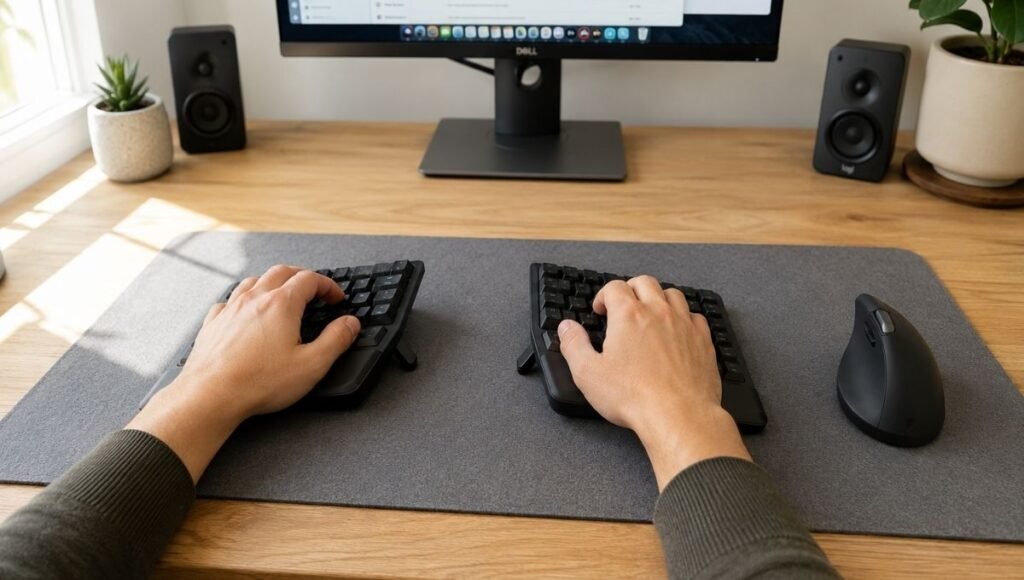
- An ergonomic keyboard and mouse combination addresses both the keyboard angle problem and the mouse rotation problem simultaneously — most users notice the compounded benefit of using both within 2–3 weeks
Ergonomic Keyboard Benefits: What’s Happening in Your Wrists Right Now
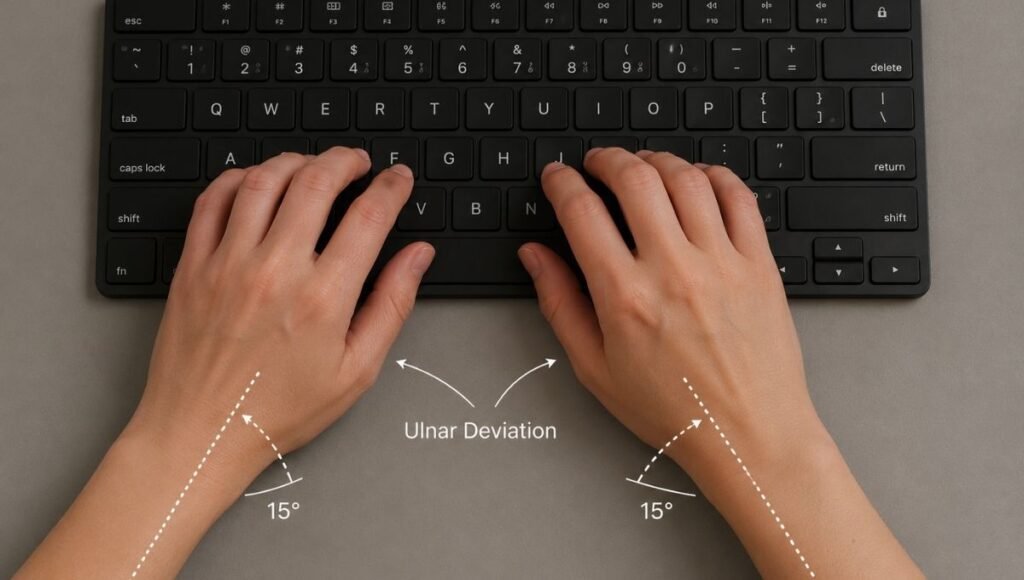
To understand what an ergonomic keyboard does, it helps to see what a standard keyboard is doing that creates the problem.
Look at your hands on a standard keyboard right now. Your hands are angled inward toward the center of the keyboard — this is called ulnar deviation, the wrist bending toward the pinky-finger side. Your forearms are rotated so your palms face partially downward — this is pronation. Both positions are unnatural resting positions that require sustained muscle activity to maintain throughout the day.
Now let your arms hang at your sides in a completely relaxed position. Notice that your thumbs point slightly forward and your palms face each other — not downward, not angled inward. This is the neutral forearm position. The further your typing position deviates from this, the more sustained muscle load accumulates over hours and days.
An ergonomic keyboard moves your hands closer to this neutral position. Different types do this in different ways — which is why the “best ergonomic keyboard” depends entirely on which deviation from neutral is causing your specific discomfort.
Split Keyboard: What It Is and Who It’s For
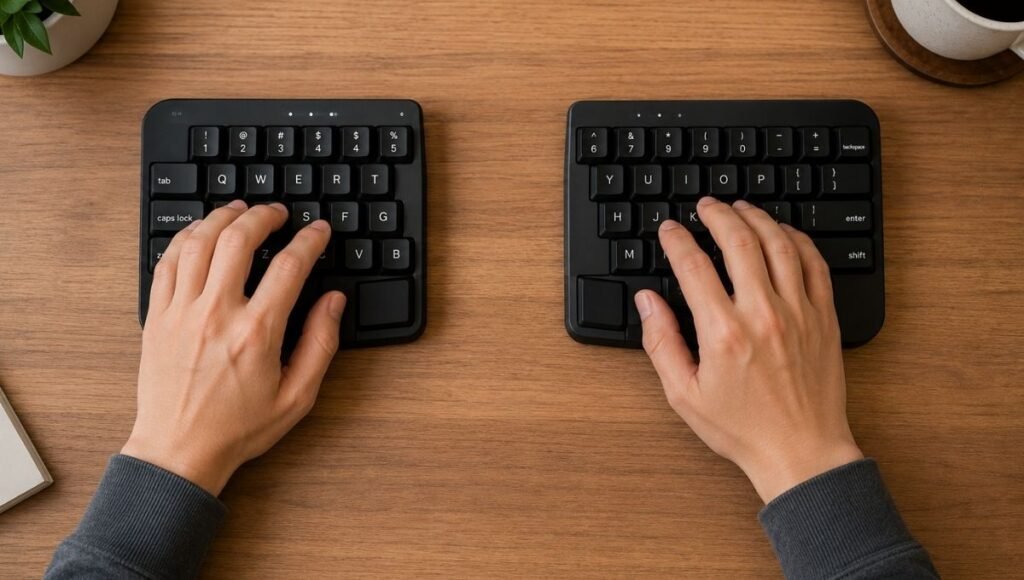
A split keyboard divides the keyboard into two separate halves — one for the left hand, one for the right. Each half can be positioned independently, which allows you to place them at shoulder width rather than forcing both hands to angle inward toward a fixed center point.
The benefit is directly related to ulnar deviation. With a standard keyboard, the keys for the right hand are to the right of center and the keys for the left hand are to the left of center — but the keyboard is one unit, so both hands have to meet in the middle. The result is that inward wrist angle. A split keyboard eliminates the constraint entirely: the right half sits where the right hand naturally rests, and the left half sits where the left hand naturally rests, both at or near shoulder width.
Who benefits most from a split keyboard:
- People whose primary discomfort is in the wrists, specifically where the wrist meets the thumb-side of the hand — the ulnar deviation pattern
- People who notice shoulder tension during or after long typing sessions — the inward angle of a standard keyboard also affects shoulder position
- Touch typists — split keyboards require proper touch typing technique to use effectively. If you use two-finger typing or rely heavily on visual keyboard checking, a split keyboard’s learning curve is steeper
Who may not benefit as much: people whose discomfort is primarily in the forearms from sustained rotation (pronation) rather than wrist deviation. For this group, a tented keyboard may be more directly useful.
Split Ergonomic Keyboard: Fixed Split vs Adjustable
Split keyboards come in two configurations. Fixed split keyboards have the two halves attached but angled — the keyboard is one piece with a built-in gap or angle in the center. These are less adjustable but more approachable: they feel closer to a standard keyboard, so the adjustment period is shorter. Adjustable split keyboards have fully separate halves that can be positioned anywhere relative to each other. These provide maximum flexibility but require a longer adjustment period and a more deliberate setup process.
For most home office users making their first ergonomic keyboard switch, a fixed split is the practical starting point. The ergonomic benefit is meaningful and the adjustment from a standard keyboard is manageable within a week or two.
Tented Keyboard: Reducing Rotation Without Splitting
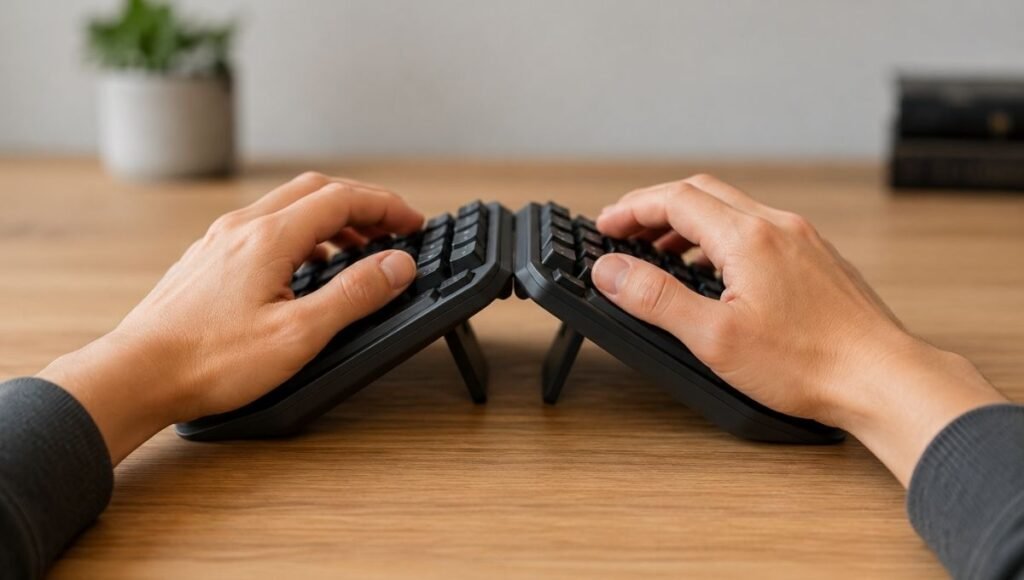
A tented keyboard raises the inside edge of the keyboard — the edge closest to the center — so each hand tilts slightly outward rather than lying completely flat. This reduces forearm pronation: instead of the full palm-down rotation of a standard keyboard, a tented keyboard allows a partial handshake-style position.
The name comes from the tent shape created when the keyboard is raised in the center — the two sides slope away from a raised middle point like a tent.
Tenting addresses a different ergonomic problem than splitting. If the primary issue is forearm and wrist fatigue from sustained rotation — the kind that shows up as forearm tightness rather than wrist-side pain — tenting is more directly relevant than splitting. Many split keyboards also include tenting options, allowing both adjustments simultaneously.
The practical appeal of tenting: it’s less disruptive to typing technique than a full split. The keys are in the same relative positions; only the angle changes. For people who aren’t touch typists or who find the split configuration intimidating, a tented keyboard without full splitting is a gentler entry point.
Compact Ergonomic Keyboard: When Desk Space Is the Constraint
Standard ergonomic keyboards — particularly split designs — are wide. A split keyboard with both halves extended to shoulder width takes up more desk space than a standard keyboard. For small desks or setups where the mouse needs to be close to the keyboard, this creates a space problem.
Compact ergonomic keyboards address this by removing the number pad (tenkeyless design) and sometimes shortening key spacing, reducing the overall footprint while maintaining the ergonomic angle or split. They’re a practical compromise for space-constrained setups.
The tradeoff: compact keyboards require more key remapping for number-heavy workflows, and shorter key spacing is an adjustment for users with larger hands. For most home office typing work without heavy number entry, a compact design is a reasonable trade for better desk space management.
Ergonomic Keyboard and Mouse: Why Both Matter and Which to Change First
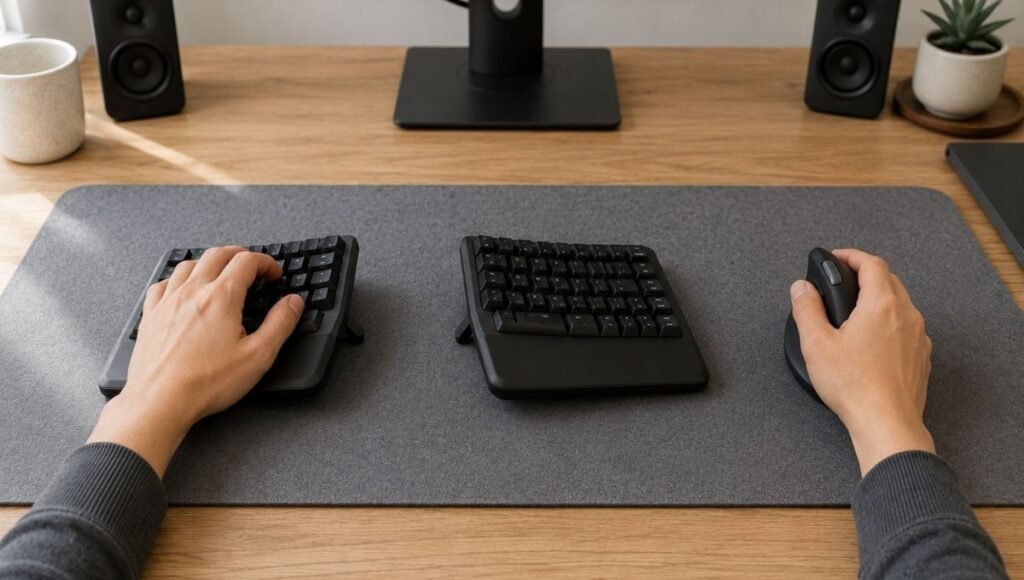
The question that doesn’t get a clear answer in most guides: do you need to change both at the same time, or can you start with one?
The honest answer is that keyboard and mouse address different parts of the same system. A standard keyboard forces ulnar deviation and pronation during typing. A standard mouse forces full forearm pronation during cursor movement. If you change only the keyboard, you reduce the typing-related strain but leave the mouse-related strain in place. If you change only the mouse, the reverse is true.
For most people, starting with one and adding the second after the first adjustment period is complete is more manageable than changing both simultaneously. The adjustment period for a new keyboard or mouse typically takes 1–2 weeks — doing both at once doubles the cognitive load and makes it harder to identify which change is producing what effect.
Which to change first: change whichever one you use more continuously. For people who type heavily (writers, coders, document-heavy roles), start with the keyboard. For people who use the mouse constantly (designers, spreadsheet-heavy roles, analysts), start with the mouse. After the first device is comfortable and habitual, add the second.
→ Full guide: Ergonomic Mouse — which type actually helps and how to choose.
Ergonomic Keyboard for Carpal Tunnel: What Helps and What Doesn’t
Carpal tunnel syndrome involves compression of the median nerve where it passes through the wrist. Keyboard-related carpal tunnel symptoms are primarily driven by sustained wrist extension (bending the wrist upward while typing) and ulnar deviation.
An ergonomic keyboard can help reduce these positions — but which type depends on the specific wrist angle that’s creating the problem:
- If ulnar deviation is the primary issue (pain or numbness on the thumb and index finger side of the wrist): a split keyboard that allows the hands to be positioned at shoulder width reduces this most directly
- If wrist extension is the primary issue (wrist bending upward during typing): a negative-tilt keyboard stand or keyboard tray that positions the keyboard with a slight downward slope reduces wrist extension without requiring an ergonomic keyboard at all
- If forearm pronation is the primary issue (fatigue in the forearm, not specifically at the wrist): a tented keyboard or vertical keyboard reduces the rotation
→ Keyboard Tray Guide — whether a tray makes more sense than a keyboard upgrade for your situation.
For diagnosed carpal tunnel syndrome with numbness, tingling, or nighttime symptoms, keyboard adjustment is supportive — not a medical treatment. If symptoms persist after two weeks of correct keyboard positioning and an ergonomic keyboard, professional evaluation is the right next step rather than continued equipment adjustment.
Ergonomic Keyboard Layout: Standard QWERTY vs Alternative Layouts
Some ergonomic keyboards use alternative key layouts — Dvorak, Colemak, or others — designed to reduce the total finger travel distance and balance load between hands more evenly than QWERTY.
The honest assessment for most home office users: alternative layouts are not necessary for ergonomic benefit. The physical angle and split of the keyboard matters far more for wrist and forearm health than the key arrangement. Learning Dvorak has a months-long retraining period and limited benefit for people who type in multiple languages or switch between computers frequently.
Most ergonomic keyboards use standard QWERTY layout. The ergonomic benefit comes from the physical design, not the key arrangement. Unless you have a specific interest in alternative layouts for other reasons, stick with QWERTY on a well-designed ergonomic chassis.
Ergonomic Keyboard for Mac vs Windows
Most ergonomic keyboards work with both Mac and Windows, with key labeling and modifier key positioning varying between operating systems. A few practical notes:
- Keyboards labeled for Windows can typically be used on Mac with minor remapping of the Command/Option keys in System Settings
- Mac-specific ergonomic keyboards exist and have correct key labeling out of the box — worth the small premium if the Mac is your primary machine and modifier key positions matter to your workflow
- Wireless ergonomic keyboards with Bluetooth multi-device pairing work seamlessly across Mac, Windows, and iPad — useful if you switch between devices during the workday
Getting Through the Adjustment Period
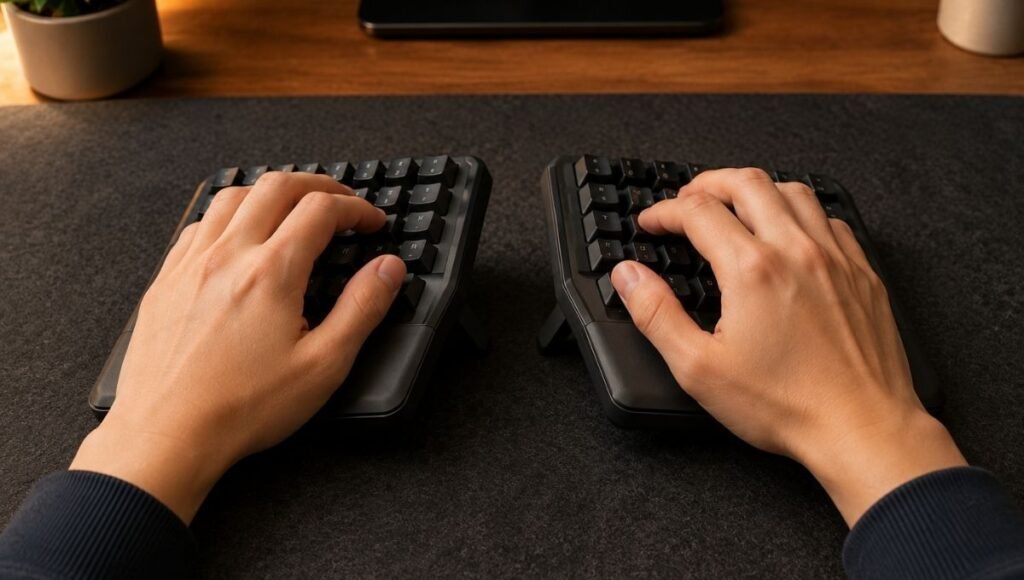
The adjustment period is real, and it’s the reason most people give up on ergonomic keyboards prematurely. The first three to five days with a split keyboard feel slow and frustrating — typing speed drops noticeably, reaching for keys that are now in slightly different positions takes conscious effort, and the whole setup feels like it’s making things worse rather than better.
This is normal. It’s not a sign that the keyboard is wrong for you. It’s the expected response to retraining motor patterns that have been established over years of typing on a standard keyboard. The adaptation period for most people is 1–2 weeks, after which typing speed and accuracy return to baseline and the ergonomic benefit is fully available.
The practical approach that shortens the adjustment period:
- Start using the new keyboard for short periods — an hour at a time — rather than committing to it full-time from day one. This gives the motor patterns time to adapt without the sustained frustration of a full working day at reduced speed
- Don’t switch back and forth between standard and ergonomic keyboards during the adjustment period if you can avoid it. Switching delays the retraining
- Touch typing (not looking at the keyboard) makes the split adjustment significantly easier — the keys are in the same relative positions; only the physical location in space has changed
If You Only Have 10 Minutes to Test Your Current Setup Right Now
Before buying anything: look at your hands on your current keyboard. Are your wrists bending inward toward the center of the keyboard? Are your forearms fully rotated palms-down? Is the keyboard raised at the back (standard keyboard feet position), which tips the keyboard and requires the wrists to bend upward to reach the keys?
The fastest free improvement: fold down the keyboard feet so the keyboard is flat or tilts slightly away from you. This reduces wrist extension — the upward bending that increases carpal tunnel pressure — without any new hardware. For many people this one change reduces typing discomfort within days. → If a keyboard tray would position the keyboard better: Keyboard Tray Guide.
If the wrist position is already good and the inward angle is the remaining issue, that’s the signal a split keyboard would help.
Frequently Asked Questions
What is a split keyboard?
A split keyboard divides the keyboard into two halves — one for each hand — that can be positioned independently. This allows each hand to sit at shoulder width rather than angling inward toward a fixed center point, which is what a standard keyboard requires. The result is less ulnar deviation (inward wrist bending) during typing. Split keyboards come in fixed-split versions (two halves attached at an angle) and fully separate versions (two independent halves that can be positioned anywhere).
Is an ergonomic keyboard worth it?
For people who type heavily (4+ hours per day) and experience wrist, forearm, or shoulder discomfort during or after typing sessions, yes — the position change an ergonomic keyboard provides addresses the mechanical source of most typing-related discomfort. For people who type occasionally and have no current discomfort, it’s a preventive investment rather than a corrective one. The adjustment period (1–2 weeks) and higher cost compared to a standard keyboard are the main trade-offs.
Should I get an ergonomic keyboard and mouse at the same time?
It’s more manageable to change one at a time. Changing both simultaneously doubles the adjustment load and makes it harder to identify which change is producing which effect. Start with whichever you use more continuously — keyboard if typing is your primary activity, mouse if cursor work is — and add the second after the first feels natural. Most users notice compounded benefit from using both within 2–3 weeks of having both in place.
What is a tented keyboard?
A tented keyboard raises the inner edge of the keyboard (the edge closest to the center) so each hand tilts slightly outward rather than lying completely flat. This reduces forearm pronation — the sustained palm-down rotation that a standard flat keyboard requires. Some split keyboards include tenting adjustment. Tenting and splitting address different ergonomic problems: tenting reduces forearm rotation; splitting reduces wrist deviation. Both problems can exist simultaneously.
How long does it take to adjust to a split keyboard?
Most people adjust within 1–2 weeks of consistent use, returning to their previous typing speed and accuracy while benefiting from the improved hand position. The first 3–5 days are the hardest — typing feels slower and more conscious. Starting with short sessions rather than full days of use, and avoiding switching back to a standard keyboard during the adjustment period, shortens the timeline.
Match the Keyboard to the Problem
An ergonomic keyboard is not a universal solution to typing discomfort. It’s a targeted adjustment to specific wrist and forearm positions — and which type of ergonomic keyboard helps depends on which position is causing the specific discomfort you’re experiencing.
Inward wrist deviation: split keyboard. Forearm pronation: tented keyboard. Both: a split with tenting adjustment. Wrist extension from keyboard angle: fold down the keyboard feet, or consider a keyboard tray. Persistent discomfort after two weeks of corrected setup: professional evaluation rather than more hardware.
The adjustment period is real and temporary. The discomfort that an ergonomic keyboard addresses is also real — and accumulates over years if left unchanged. Getting the match right makes the adjustment worth it.
More from WorkDeskLab:
- Ergonomic Mouse — vertical, trackball, and which type actually helps
- Wrist Rest Guide — what it does and when it helps
- Keyboard Tray — whether a tray makes more sense than a keyboard upgrade
- Desk Setup Guide — the complete ergonomic workstation
- How to Set Up a Home Office That Actually Works
References: Tittiranonda P et al. — “Effect of four computer keyboards in computer users with upper extremity musculoskeletal disorders,” American Journal of Industrial Medicine, 1999 · Hedge A, Morimoto S, McCrobie D — “Effects of keyboard tray geometry on upper body posture and comfort,” Ergonomics, Applied Ergonomics research on split keyboard designs and wrist posture outcomes
WorkDeskLab is reader-supported. If we recommend a product, we may earn a small affiliate commission at no extra cost to you. This never influences what we recommend. See our Affiliate Disclosure for details.