

About two years into working from home, I inherited a large executive desk from a relative who was downsizing. It was beautiful — solid dark wood, two full pedestals of drawers, more surface area than I’d ever had. I set it up in the corner of my home office and felt like I’d finally arrived.
Six weeks later, it was the messiest desk I’d ever owned.
I couldn’t explain it at first. The desk was bigger, so logically there should have been more room. Instead, every inch was covered. Cables ran in four directions. The drawers had become junk drawers. The right pedestal, which I’d intended for filing, mostly held chargers I didn’t use and notebooks I’d never opened. I’d replaced a manageable medium-sized desk with something that felt like a horizontal storage unit with ambitions.
Here’s what I eventually figured out: executive desks don’t stay organized automatically. They need a system built for their specific proportions — the wide surface, the deep drawers, the cable complexity — or they absorb everything around them. Once I built that system, the same desk became one of the most functional setups I’ve had. It took about an hour to implement and about fifteen minutes a week to maintain.
This guide walks through the same formula.
— Daniel Shaw, 7 years working from home, one executive desk that went from disaster to daily driver with a single reorganization session
Why Executive Desks Become Messy Faster Than Standard Desks
An executive desk gets messy faster than a standard desk for structural reasons, not personal ones. Understanding the mechanics makes it easier to fix.

The Empty Space Trap
Empty surface space on a desk attracts items the same way a flat counter near the front door collects keys, mail, and things that don’t have anywhere else to go. A standard desk with 48 inches of surface has a limited attraction radius. An executive desk with 72 inches of surface has a significantly larger one. Items migrate to the desk because there’s always room — and because “I’ll deal with it later” has a lot of square footage to hide in.
The fix isn’t removing surface area. It’s giving every part of the surface a defined purpose, so items either belong there or they don’t.
More Surface = More Visual Clutter
On a smaller desk, two or three out-of-place items represent a significant percentage of the surface. The desk looks messy, which creates pressure to clean it. On an executive desk, a dozen out-of-place items represent a smaller percentage of a larger surface. The desk still feels “mostly organized” even when it objectively isn’t — until suddenly it isn’t, at all.
The executive desk accumulates clutter more gradually and more invisibly than a smaller desk. By the time it looks messy enough to address, it’s already significantly worse than a smaller desk would be allowed to get.
The Hidden Cost of Large Drawers
Executive desk drawers are deeper and more numerous than standard desk drawers. This sounds like a benefit and is — if the drawers are organized. If they’re not, a large drawer becomes a large junk drawer: the disorganization is proportional to the storage capacity. An executive desk with two unorganized pedestals doesn’t just have a messy drawer problem; it has a large-scale organizational failure that makes every interaction with those drawers slower and more frustrating.
Start with a 3-Zone Executive Desk Layout
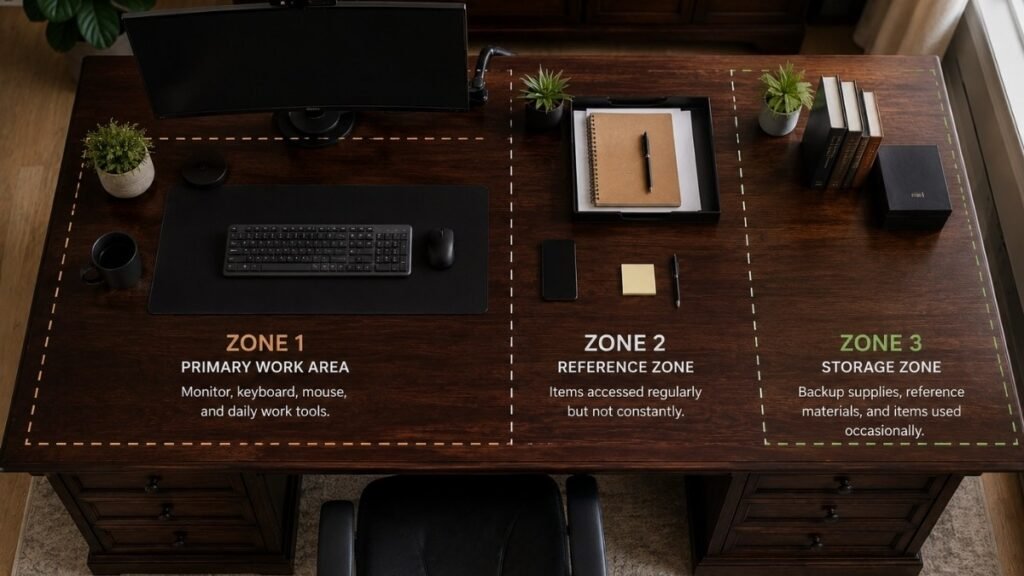
The most important thing you can do with an executive desk is stop treating it as one large work surface and start treating it as three distinct zones. This single decision changes how everything else gets organized.
Zone 1: Daily Work Area
The primary zone is directly in front of you — the area you face when seated squarely at the desk. This is where the monitor (or monitors), keyboard, and mouse live. Nothing else belongs in this zone during work hours. No papers, no chargers, no secondary items crowding the primary workspace.
The primary zone on an executive desk is typically 30–36 inches wide — roughly the width of a standard desk. The rest of the executive desk’s surface is Zones 2 and 3.
Zone 2: Reference Zone
The secondary zone is immediately adjacent to the primary zone — typically the wing of the desk to your dominant hand’s side, or the section of desk surface within natural reach without leaning. This is where things you access regularly but not constantly live: a notebook, a phone stand, documents for the current project, a pen holder.
The reference zone should be kept deliberately sparse. It’s not a catch-all for everything that needs to be within reach; it’s curated to hold only what serves the active workday.
Zone 3: Storage Zone
Everything else — backup supplies, reference materials you access occasionally, equipment that doesn’t need to be in the primary or secondary zone — belongs here. On an executive desk, Zone 3 is often the far end of the surface opposite the primary work area, plus the drawer pedestals.
Zone 3 exists, and that’s fine. The key is that items in Zone 3 are there intentionally, not by default accumulation.
The 15-Inch Reach Rule
A useful organizing principle: anything you reach for during active work should be within 15 inches of your hand’s natural resting position at the keyboard. If you have to lean, extend your arm fully, or turn your body to access something, it doesn’t need to be on the primary zone. This rule alone eliminates a significant amount of surface clutter by revealing which items you think you need nearby versus which ones you actually reach for.
Build an Ergonomic Executive Desk Setup
Executive desks are larger, but the ergonomic principles are identical to any other desk. The difference is in the implementation — specifically around monitor placement and surface depth.
Monitor Height
The top of the primary monitor should be at or just below eye level when seated with normal posture. Executive desks often have deeper surfaces (30–32 inches front-to-back) which naturally positions monitors further away — which is actually beneficial for eye comfort at larger screen sizes. A monitor riser or arm brings the screen to the correct height regardless of the desk’s surface depth. → Monitor Stand Guide — correct height and which type works.
Dual Monitor Placement
Executive desks are wide enough to comfortably accommodate dual monitors without crowding. The rule for dual setups: the primary monitor sits directly in front of you, centered on your body. The secondary monitor sits to one side, angled slightly toward you. Neither should be placed in the corner or at an angle that requires sustained neck rotation. A dual monitor arm keeps both screens at consistent heights and frees the desk surface underneath. → Monitor Arm Guide — how to set up dual monitors correctly.
Keyboard Position
At the correct chair height, the keyboard should sit at elbow level with your forearms roughly parallel to the floor. Executive desks at standard height (28–30 inches) accommodate this for most people at a standard office chair. If the desk surface is higher than standard (some executive desks run 30–31 inches to accommodate taller users), a keyboard tray bringing the keyboard slightly below desk surface level improves the typing angle significantly.
Choosing the Right Desk Mat Size
A standard desk mat (31–36 inches wide) covers the primary work zone on an executive desk but leaves the secondary and storage zones uncovered. This is actually the right approach — a mat covering the entire executive desk surface would be unwieldy and unnecessary. Size the mat to the primary work zone: keyboard, mouse, and some writing space. Typically 36 inches wide and 18–20 inches deep is the right fit. → Desk Mat Guide — how to size a mat correctly.
Lighting for Large Wooden Executive Desks
Large dark wood executive desks absorb light rather than reflecting it — which means the surface can feel dimmer than lighter desks even in the same lighting conditions. A desk lamp with a higher color temperature (4500–5500K) compensates for this and provides the alertness-supporting light that work hours benefit from. Position the lamp in the secondary zone rather than the primary zone so it illuminates the work area from the side without creating glare on the monitor.
Cable Management for Executive Desks (Especially Floating Desks)
Cable management on an executive desk is more complex than on a standard desk because there are more devices, more cable length to manage, and often more surface area for cables to cross visibly. The goal is the same as any desk — no cables visible on the surface, power strip off the floor — but the implementation requires more planning.
Why Floating Executive Desks Are Harder to Organize
A floating executive desk (wall-mounted, no leg structure) has no leg posts to route cables down. Cables either drop freely from the desk edge — which looks worse than on a standard desk because there’s more of them — or need to be routed along the wall behind the desk. Plan cable routing before finalizing the desk position: a floating executive desk with no wall-to-desk cable routing solution will have cable chaos within a week of setup.
Create an Invisible Under-Desk Cable System
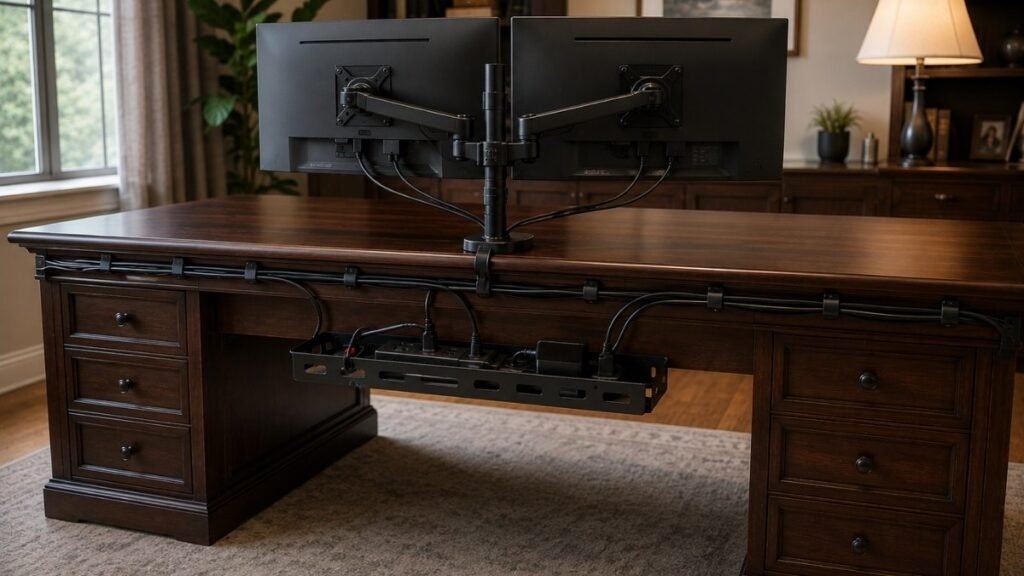
The system that works for executive desks: a cable management tray under the desk, as far back as possible along the primary work zone. This holds the power strip and cable bulk off the floor, out of sight, and in a contained location. The tray should sit directly below the area where the most cables originate — typically the primary monitor zone. → Cable Tray Guide — how to choose and install one.
Route Every Cable Through One Single Path
The most effective cable management principle for a large desk: all cables from all devices should reach the power strip via one consolidated path, not through independent routes across the desk surface. Use cable clips along the back edge of the primary zone to gather all running cables into a single managed run before they drop to the cable tray below. This single discipline — one path, not many — eliminates the majority of cable chaos on any desk size. → Desk Cable Management Guide — the full system.
Hide Power Strips Under the Desk
The power strip should never be on the floor or on the desk surface. Under-desk — mounted in a cable tray or clipped directly to the desk underside — is the correct location. For an executive desk with two pedestal sections, consider a second power strip under the far pedestal to serve devices on that side without running long cables across the desk. → Under Desk Storage — maximizing the space below the surface.
Cable Sleeve vs Cable Box vs Cable Tray
Three tools for different parts of the cable management problem:
- Cable sleeve: Bundles multiple cables running along the same path into a single visual unit. Best for the desk-to-floor drop where several cables descend together.
- Cable box: An enclosed box that sits on or under the desk and contains a power strip plus its cable bulk. Simple, no installation, slightly more visible than a tray. Works on the desk surface in the storage zone if under-desk mounting isn’t possible.
- Cable tray: Mounts under the desk and holds a power strip plus cables out of sight entirely. The most effective solution for executive desks where cable volume is high and visual cleanliness matters.
Organizing Executive Desk Drawers Like a Filing System
Executive desk drawers fail for two reasons: they’re too large to stay organized without structure, and they accumulate items that shouldn’t be there. The fix is treating them the way an organized office filing system works — not as flexible catch-all storage, but as defined spaces for specific categories.

Separate Utility Drawers from File Drawers
Most executive desk pedestals have a mix of shallow top drawers and deeper bottom drawers. The shallow top drawers (2–3 inches deep) are utility drawers — pens, sticky notes, small supplies, items used several times a day. The deeper bottom drawers (legal or letter depth, typically 10–12 inches) are file drawers, designed for hanging file folders.
The most common executive desk drawer mistake: using the deep file drawers for non-file items. A deep drawer without a hanging file rail becomes a black hole — items pile up, nothing is findable, and the drawer’s potential is completely wasted. Install hanging file rails in every deep drawer that doesn’t already have them, and use them for their intended purpose.
Best Drawer Dividers by Drawer Depth
Drawer dividers work only when matched to the actual drawer depth:
- Shallow utility drawers (2–3 inches): Low-profile bamboo or plastic dividers, sized to create compartments for pens, clips, sticky notes, and small tools. Adjustable dividers are better than fixed — executive desk drawer dimensions vary between manufacturers.
- Medium drawers (4–6 inches): Good for notebooks, folders, and supplies in backup quantities. A combination of compartment inserts and a small tray for frequently-used items works well.
- Deep file drawers (10–12 inches): Hanging file folder rails with labeled folders. Nothing else should live here except active files.
How Hanging File Folders Save Time
Hanging file folders in deep executive desk drawers eliminate two problems simultaneously: documents have a defined home (which means they don’t migrate to the desk surface), and finding a specific document takes seconds rather than minutes of searching through piles. Label folders by category rather than by document — “Current Projects,” “Reference,” “To File,” “Financials” — so the system works with how you actually interact with paper rather than how you think you should.
What Should Never Go Inside Executive Desk Drawers
Four categories of items that commonly end up in executive desk drawers and should be removed:
- Dead technology: Old chargers, cables for devices you no longer own, adapters without matching devices. These accumulate faster in executive desk drawers because there’s room for them.
- Duplicate supplies in excess: One backup pen is useful; forty pens is supply hoarding. One spare notepad is sensible; eight is clutter with a lid on it.
- Non-office personal items: Medication, snacks, personal documents unrelated to work. These belong elsewhere and slow down drawer access for work items.
- Decision-avoidance items: Things you put in the drawer because you weren’t sure what to do with them. These should be dealt with, not stored indefinitely at desk level.
Budget Accessories That Make a Huge Difference
Executive desk organization doesn’t require expensive purchases. These are the five categories where small investments produce outsized improvements:
For Cable Chaos
A clamp-mount cable management tray ($25–$40) and a pack of adhesive cable clips ($8–$12). These two purchases eliminate the majority of cable chaos on any executive desk without drilling or permanent modifications.
For Large Empty Surfaces
A large desk mat ($35–$60) sized to the primary work zone defines the active workspace visually and gives the surface a unified appearance. Without a mat, a large executive desk surface looks like a collection of objects; with one, the primary zone reads as intentional.
For Paper Organization
A two-tier document tray ($20–$35) in the secondary zone gives paper a defined home — active documents in the top tier, reference documents below. Paper without a tray migrates across the entire desk surface within days.
For Dual Monitors
A monitor arm or dual monitor arm ($60–$150) raises both screens to correct eye level, frees the desk surface underneath both monitors, and routes monitor cables through the arm’s built-in cable management channel. On a large executive desk, this creates a significant surface area reclamation below the monitors.
For Everyday Charging
A small desktop charging station or USB hub in the secondary zone consolidates all daily device charging into one spot — one cable from the hub to the power strip, rather than individual charger cables running separately from multiple devices across the desk surface.
My One-Hour Executive Desk Reset Routine
This is the actual sequence I use when the desk has accumulated enough clutter to need a proper reset. It takes about an hour and produces a desk that maintains itself for weeks with minor daily effort.
Step 1: Remove Everything
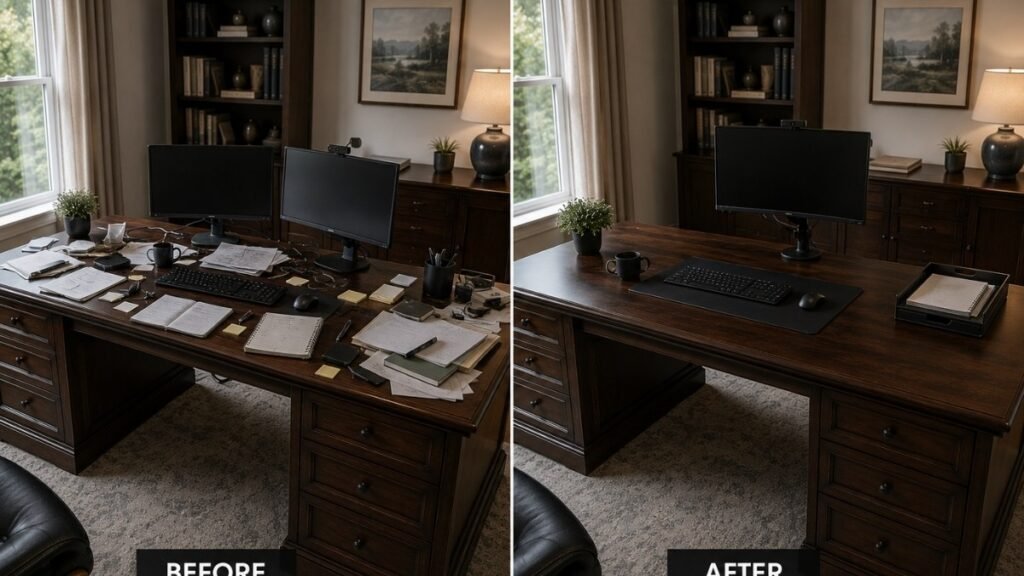
Clear the entire desk surface to the floor or a table. Everything. This takes about ten minutes and feels chaotic — that’s intentional. You need to see everything that was on the desk to make honest decisions about what should go back.
Step 2: Create Zones
Before anything goes back on the desk, mentally (or physically with tape) establish the three zones. Decide what the primary zone dimensions are, where the secondary zone ends, and what the storage zone will hold. Zones before objects.
Step 3: Install Cable Tray
With the desk surface clear, install or reposition the cable management tray under the desk, route the power strip cables into it, and run cable clips along the back edge of the primary zone. Do this before placing equipment back on the desk — cable management is infinitely easier without equipment in the way.
Step 4: Organize Drawers
Empty all drawers, install dividers in utility drawers, install hanging file rails in deep drawers, and return items only to their correct category home. Discard or relocate anything that doesn’t belong in a desk drawer.
Step 5: Return Daily Essentials
Put back only the daily-use items — monitor, keyboard, mouse, desk mat, lamp, phone stand, one pen, one notebook. Everything else goes to its secondary zone, storage zone, or a drawer. The desk surface should look spare when you’re done. If it doesn’t, something is still in the wrong place.
Common Executive Desk Mistakes That Waste Space
Four specific mistakes that undo executive desk organization faster than anything else:
Buying organizers before measuring. An organizer that doesn’t fit the drawer dimensions, doesn’t match the drawer depth, or takes up more surface space than it frees is worse than nothing. Measure every space before ordering any organizer. Measure twice.
Using a tiny desk mat. A 12×18 inch mouse pad on a 72-inch executive desk looks like a coaster on a dining table. It doesn’t define the primary zone; it just occupies a small corner of it. Size the mat to the keyboard-plus-mouse-plus-writing-space footprint, which is typically 36 inches wide and 18 inches deep minimum on an executive desk.
Keeping chargers on the desktop. Charging cables on the desk surface are one of the highest-visual-noise items in any setup — they’re long, they tangle with other cables, and they actively pull the desk toward chaos. Charging belongs in the secondary zone (a dedicated charging station) or under the desk (cable tray), not floating across the primary work area.
Too many decorative items. Executive desks attract decorative additions because there’s space for them. Each individual item is fine; collectively, five or six decorative items in the secondary zone create visual competition with the work. One plant, one framed photo, one meaningful object. The desk performs better when the decoration is deliberate and minimal.
Executive Desk Setup Checklist
- ☐ Three zones defined: primary work area, reference zone, storage zone
- ☐ Monitor at correct eye level (top of screen at or just below eye level)
- ☐ Keyboard at elbow height with wrists neutral
- ☐ Desk mat sized to primary work zone (minimum 36 inches wide)
- ☐ Cable tray installed under desk, power strip off the floor
- ☐ All cables routed along back edge in a single consolidated path
- ☐ Utility drawers organized with dividers by category
- ☐ Deep drawers equipped with hanging file rails and labeled folders
- ☐ Dead technology and duplicate supplies removed from all drawers
- ☐ Document tray in secondary zone for active paper
- ☐ Charging consolidated to one spot, cables off the primary zone
- ☐ Decorative items limited to one or two intentional choices
Frequently Asked Questions
How do I split my large executive desk into productive zones?
Use the three-zone system: primary zone (directly in front of you, monitor and keyboard only), reference zone (adjacent to primary, notebook and frequently-accessed items), storage zone (far end of surface and drawer pedestals). The physical boundary between zones doesn’t need to be marked — the furniture arrangement itself creates the division once you’ve decided which items belong where. The 15-inch reach rule helps: anything used during active work should be within 15 inches of your keyboard hand’s resting position.
What is the best way to hide cables on an executive desk that isn’t against the wall?
For a freestanding executive desk not against a wall, the two-part solution is: an under-desk cable tray (clamp-mounted, no drilling) to hold the power strip and cable bulk below the surface, and cable clips along the underside of the desk perimeter to route cables from their devices to the tray. The cable drop to the floor from the tray uses a cable sleeve to consolidate multiple cables into a single managed run. It won’t be as invisible as a wall-mounted desk, but it contains the chaos to one organized path rather than multiple random ones.
What size desk mat is best for an executive desk?
Size the mat to the primary work zone, not the full desk surface. For most executive desk setups with a keyboard, mouse, and some writing space, a mat 36–40 inches wide and 18–20 inches deep covers the primary zone correctly. Mats larger than this start to look awkward on an executive desk’s proportions and can interfere with the secondary zone items you need adjacent to the primary area.
How should I organize the deep file drawers on an executive desk?
Install hanging file rails if not already present (universal rails fit most standard drawer widths and cost $15–$25). Use labeled hanging folders organized by category rather than by individual document. Categories like “Current Projects,” “Reference,” “To File,” “Financial,” and “Admin” cover the majority of home office paper needs. Nothing except paper files should be stored in deep file drawers — the depth makes non-file items difficult to access and the drawer’s intended use impossible to maintain.
Is an executive desk too big for a home office?
It depends on the room dimensions and how you use the extra surface area. A standard executive desk (60–72 inches wide, 30–32 inches deep) needs at least a 10×10 foot room to feel proportional rather than cramped — with 3 feet of chair clearance behind the desk and reasonable circulation space on the sides. In a room that fits it, an executive desk provides genuinely useful extra surface for dual monitors, physical work, and organized secondary storage. In a room that’s too small, the desk dominates the space and makes both the room and the desk feel worse.
What should stay on top of an executive desk every day?
Primary zone: monitor(s), keyboard, mouse, desk mat, desk lamp. Secondary zone: phone stand, notebook or document tray, pen holder with one or two pens. That’s it. Everything else belongs in a drawer, on a shelf above the desk, or off the desk entirely. The executive desk’s size creates the illusion that it can accommodate more daily items — it can’t, any more than a smaller desk can. The primary zone remains effective only when it stays clear.
How can I keep a large executive desk from becoming cluttered again?
Two habits that sustain executive desk organization more than any product: clearing the desk surface completely at the end of each working day (five minutes), and a monthly drawer audit (fifteen minutes) to remove items that have migrated without permission. The daily clear prevents surface accumulation; the monthly audit prevents the drawers from reverting to junk drawers. Without both habits, any organization system eventually reverts.
Do I really need a monitor arm for an executive desk?
Not required, but more valuable on an executive desk than on a standard one. A monitor arm on an executive desk reclaims the desk surface area under the monitor (which is significant on a deep executive desk), allows the monitor to be positioned precisely at the correct height and distance regardless of the desk’s surface depth, and integrates cable management into the arm structure. If you’re running dual monitors on an executive desk, a dual monitor arm is particularly worth the investment — it keeps both screens at consistent heights and prevents the “two different risers of different heights” problem that dual setups often produce.
Final Thoughts: A Bigger Desk Won’t Fix a Messy Workspace
When I first switched to an executive desk, I honestly thought the extra space would solve my clutter problem.
It didn’t.
What finally made the difference wasn’t buying more organizers or adding another shelf. It was giving every part of the desk a purpose and sticking to a simple routine that I could actually keep up.
If you’re setting up a large desk, don’t try to make it perfect on day one.
Start with three zones.
Hide the cables.
Organize one drawer at a time.
After a week or two, you’ll probably notice something unexpected—you spend less time looking for things and more time actually getting work done.
And that’s really what a good workspace is supposed to do.
🛠️ WorkDeskLab Notes: The Thinking Behind This Guide
A well-organized workspace isn’t created by buying more accessories.
It’s built by understanding how you actually work every day—how often you reach for an item, where distractions come from, and how your desk supports your workflow.
This guide is based on practical workspace principles covering:
📐 Ergonomic Workspace Design
Research-backed recommendations for monitor placement, desk height, posture, and reducing physical strain during long work sessions.
🔌 Cable Management & Workspace Organization
Proven organization methods that reduce visual clutter and create a cleaner, more focused work environment.
📂 Productivity & Storage Systems
Simple organizational systems that make documents, office supplies, and daily tools easier to access without creating unnecessary clutter.
💰 Smart Buying Decisions
Practical recommendations focused on value, durability, and long-term usefulness instead of buying more products than you actually need.
A productive workspace isn’t about having the biggest desk.
It’s about giving every item a purpose and every inch of your workspace a job.
Continue Improving Your Workspace
Good desk organization is built one improvement at a time. These guides can help:
- How to Set Up a Home Office That Actually Works
- Desk Setup Guide — the complete ergonomic workstation
- Desk Organization Ideas — systems that actually hold up
- Desk Cable Management — hiding every wire without drilling
- Cable Tray Guide — under-desk wire management
- Monitor Arm Guide — for dual monitor setups
- Desk Mat Guide — sizing for large desk surfaces
- Under Desk Storage — using the space below the surface
References: OSHA — Computer Workstations eTool: Workstation setup and ergonomic risk factors (osha.gov) · Journal of Environmental Psychology — Physical workspace order and its effect on cognitive load and decision-making (2013)
WorkDeskLab is reader-supported. If we recommend a product, we may earn a small affiliate commission at no extra cost to you. This never influences what we recommend. See our Affiliate Disclosure for details.